
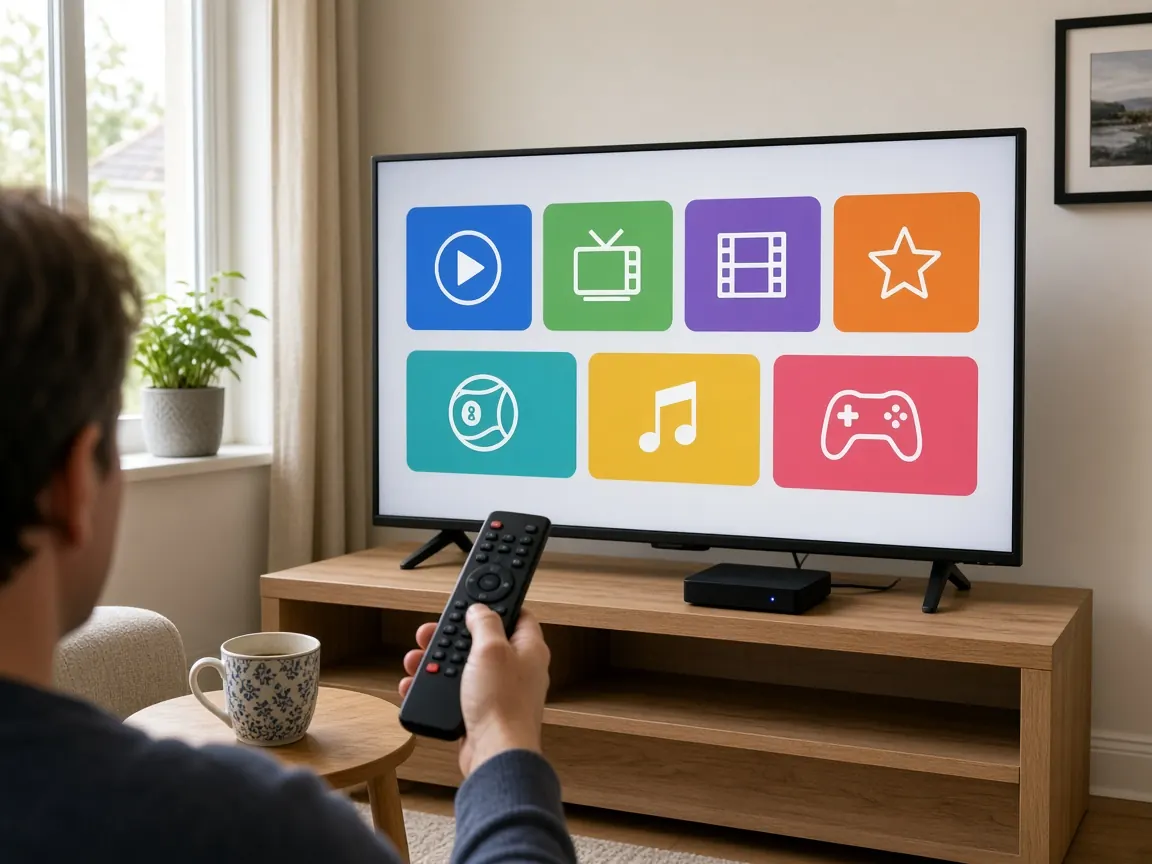
Setting up IPTV is closer to installing a new app than to installing a TV service. There is no engineer, no dish and no cable box: you install a player, enter your login details and the channels appear. This guide shows the steps for every type of device, then the settings that give you the smoothest picture.
How to set up IPTV: what you need
Before you start, have these four things ready:
- Your login details. After you order an Irish IPTV plan, they arrive on WhatsApp, either as a playlist link or as a server address with a username and password.
- A supported device: a smart TV, a streaming stick, a TV box, an IPTV set-top box, a phone, a tablet or a computer.
- A player app. This is the app that plays the channels. Many are free in your device’s app store. Tell us your device when you order and we will suggest one that suits it.
- A stable internet connection of around 10 Mbps for one HD stream, or 25 Mbps or more per screen for the best picture on a large TV.
The five steps on every device
The buttons and menus differ from device to device, but the process is always the same:
- Connect the device to the internet, ideally with a network cable for a TV or box.
- Install a player app from the device’s app store.
- Open the app and choose how to log in: with a playlist link, or with a server address, username and password.
- Enter the details exactly as we sent them. Copy and paste where you can; one wrong character is the most common reason a login fails.
- Wait for the channel list to load, then open the Irish category and save your favourites.
The sections below add the details for each type of device.
Smart TV
Most recent smart TVs have their own app store. Open it, search for “IPTV player”, install one of the players listed and sign in with your details. Choose a player with recent updates and good ratings, and keep automatic app updates switched on in the TV settings.
Some TV platforms offer only a few players, and older sets may no longer receive new apps. If you cannot find a suitable player, or the TV feels slow, plug in a streaming stick or TV box instead: you get a modern app store and a quicker interface on the same screen. Our full guide to IPTV on smart TVs covers every step, including the picture settings worth changing.
Streaming stick
A streaming stick plugs straight into a free HDMI port on the TV and draws power from a USB port or a small adapter. It is the easiest way to add IPTV to a TV that is not smart, or to replace a slow smart TV interface.
- Plug the stick into the TV, connect the power and switch the TV to that HDMI input.
- Follow the on-screen setup and connect to your Wi-Fi.
- Open the stick’s app store, install a player app and sign in with your details.
Sticks rely on Wi-Fi, so place the router as close to the TV as you can, or use a network adapter for the stick if your model supports one.
TV box
A TV box is a small media player that connects to the TV with an HDMI cable. Most have a network port, which makes them the most reliable choice for live sport, and many come with a full remote control.
- Connect the box to the TV with HDMI and to the router with a network cable.
- Complete the box’s setup and install any system updates it offers.
- Install a player app from the box’s app store and sign in.
IPTV set-top box
Dedicated IPTV set-top boxes are built for one job: playing live TV channels with a classic remote control. Instead of installing an app, you enter the connection details in the box’s settings menu, usually under a heading such as “server”, “portal” or “playlist”.
Tell us the type of box when you order. Some boxes connect with a playlist link, others need a server address, and some are identified by a device code shown in their settings. We send the details in the format your box expects.
Phone and tablet
Phones and tablets are the easiest devices to set up and the most useful when you are away from the TV: in the kitchen, in the garden or on holiday.
- Open the app store on your phone or tablet and search for “IPTV player”.
- Install a player and sign in with your details.
- Save your favourite Irish channels so they appear first.
On mobile data, keep an eye on your allowance: an evening of live TV uses several gigabytes. Many players have a setting to lower the quality on mobile data.
Computer
On a laptop or desktop computer you can either install an IPTV player app or open the playlist link in a desktop media player that supports network streams. A player app gives you the channel categories, favourites and the programme guide; a media player is quicker for a single channel.
Connect the computer to the TV with an HDMI cable and you have a big-screen setup without extra hardware.
Setting up a second TV or device
Once the first device works, the rest are quicker. Repeat the five steps on each TV, box, phone or tablet, using the same login details. Save your favourites again on each device, because most player apps keep favourites per device rather than per login. Some apps let you export your settings and import them on the next device, which saves time in a busy household.
If you want to watch on several screens at the same time, ask us how many simultaneous streams your plan allows before you set them all up, so nobody is surprised during a big match.
Playlist link or server login: which one to use
Player apps accept your details in one of two ways. A playlist link is a single web address that hands the app the full channel list. A server login is a server address plus a username and password. Both give you the same channels. Use whichever your app asks for; if it offers both, the server login usually loads the channel categories and the guide more neatly.
Keep your login details private. If you think someone else has them, message us and we will help.
Getting the best picture
Once the channels play, a few minutes spent on these settings pays off every evening:
- Use a network cable for the main TV or box whenever you can. It is the single most effective fix for freezing.
- On Wi-Fi, use the faster band and keep the router out in the open, not in a cupboard or behind the TV.
- Restart the router now and then, and install its updates.
- Close other heavy downloads during a big match: game updates and cloud backups compete for the same connection.
- Turn off extra VPN apps on the device. Every Irish IPTV plan already includes built-in VPN protection, and a second VPN only adds a detour.
- Keep the player app up to date, and clear its cache if channels start slowly.
Keeping your setup running
A setup that works on day one usually keeps working, but a little maintenance helps:
- Leave automatic updates on for the device and the player app. Updates fix bugs and keep the app compatible with your system.
- Restart the TV or box every week or two. Many devices only sleep when switched off with the remote.
- Clear the player’s cache if channels start more slowly than they used to.
- Keep your login details somewhere safe, such as the WhatsApp chat where they arrived, so you can set up a new device in minutes.
Troubleshooting
| What you see | Likely cause | What to do |
|---|---|---|
| The login is rejected | A typing error, or a space copied by mistake | Copy and paste the details again, exactly as sent |
| The channel list is empty | The list is still loading, or the playlist link is incomplete | Wait a minute, then refresh the list in the app settings |
| Channels start but freeze | Weak Wi-Fi or a busy network | Try a network cable and pause other downloads; see our buffering guide |
| The programme guide is blank | The guide has not loaded yet, or its address is missing | Refresh the guide in the app; see what is EPG |
| Times in the guide are wrong | The device or app is set to the wrong time zone | Correct the time zone on the device and in the app |
| Sound but no picture | The app’s video decoder setting | Switch between hardware and software decoding in the player settings |
Still stuck? Send us a photo of the screen on WhatsApp, with your device type and the name of the app. Support runs around the clock, so you are not left waiting until morning.
Get setup help on WhatsApp (opens WhatsApp)
Not ordered yet? Compare the four plans on our Irish IPTV prices page. Every plan includes every channel and works on all the devices in this guide.