
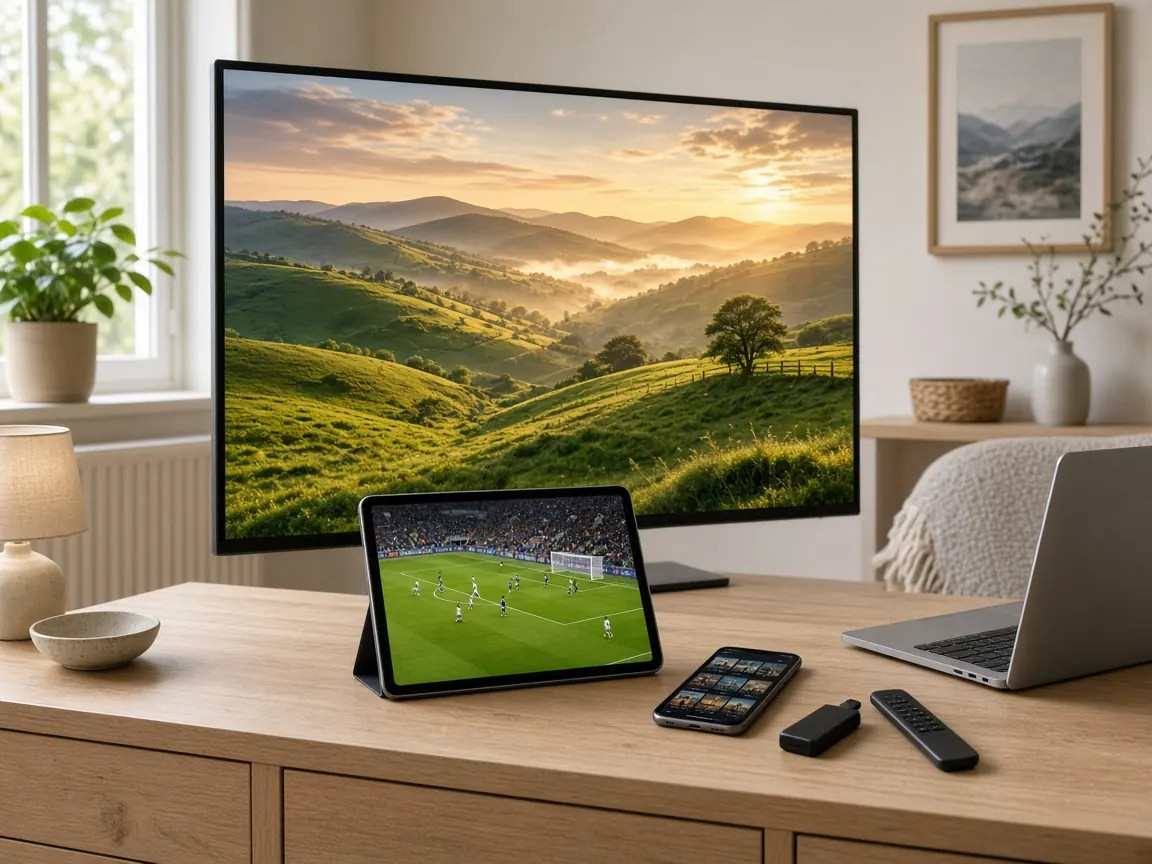
A smart TV is the most natural place to watch IPTV: one screen, one remote, no extra box on the shelf. Setting up IPTV on smart TVs is straightforward once you know where to look, and this guide takes you through it in six steps, from checking your TV to fine-tuning the picture.
What you need for IPTV on smart TVs
- A smart TV with access to an app store and recent software updates.
- Your IPTV login details: a playlist link, or a server address with a username and password.
- A stable internet connection: around 10 Mbps for one HD channel, 25 Mbps or more for the best picture on a large TV.
- Ideally, a network cable long enough to reach from the router to the TV.
If you have an Irish IPTV plan, your login details arrive on WhatsApp after payment, with a short guide for your TV.
Step 1: check your TV’s software
Open the TV’s settings and look for a section called “support”, “about” or “software update”. Install any update it offers, then restart the TV. Up-to-date software gives you the widest choice of apps and fixes bugs that can cause stuttering.
While you are in the settings, note roughly how old the TV is. Sets older than about six or seven years often stop receiving new apps, which affects step 2.
Step 2: find an IPTV player in the app store
Open the TV’s app store and search for “IPTV player” or “IPTV”. You will usually see several apps. Choose one that:
- was updated recently;
- has good ratings from other users;
- supports the type of login you received (playlist link or server login);
- offers a programme guide and favourites.
Some players are free, some charge a small one-off fee, and some let you try them for a few days first. The player is separate from your TV service: it is the app that plays the channels, not the channels themselves.
No suitable player? Some TV platforms offer very few, and older TVs may not get them at all. In that case, plug a streaming stick or TV box into a free HDMI port. You keep your TV and gain a fast, up-to-date app store. Our guide on how to set up IPTV covers sticks and boxes as well.
Step 3: connect the TV to your network
If the TV is close enough to the router, use a network cable. It is the single best thing you can do for a smooth picture, especially during live sport. If you have to use Wi-Fi, connect to the faster band and check the signal strength in the TV’s network settings. A weak signal now means buffering later.
Step 4: enter your login details
Open the player app and choose the login type that matches what you received:
- Playlist link: paste or type the full web address. It is long, so check every character.
- Server login: enter the server address, then the username and password.
Typing on a TV remote is slow and error-prone. Many players let you add the login from your phone or a web page instead, by scanning a code on the screen. If yours does, use it. When the details are accepted, the app downloads the channel list, which can take a minute the first time.
Step 5: organise your channels
The first evening is the right moment to make the TV yours:
- Open the Irish category and add your everyday channels to favourites.
- Move the favourites group to the top, so it is the first thing you see.
- Hide categories you will never use, if the app allows it.
- Load the programme guide and check that the times match your clock. If not, adjust the time zone in the app. Our article What is EPG and catch-up? explains how the guide works.
Step 6: fine-tune the picture
Two TV settings make a noticeable difference with live TV:
- Motion smoothing. Most TVs add artificial frames to smooth motion. With some streams this causes a slightly unnatural look or small jumps. Try turning it down or off and compare during a match.
- Picture mode. The bright “vivid” or “store” mode exaggerates colours. A standard or film mode is easier on the eyes for long evenings.
In the player app, look for a buffer size setting. A medium or large buffer adds a second or two of delay but absorbs small hiccups in the connection. If you see stuttering or a black screen, try switching between hardware and software decoding.
Using the remote efficiently
A smart TV remote was not designed for thousands of channels, so a few shortcuts help. Most player apps support the number keys for jumping to a channel position, the up and down buttons for zapping, and a long press on OK or a dedicated button for the programme guide. Many TVs also have a button that switches back to the previous channel, which is handy when two matches are on at once.
If your remote has a microphone button, the TV’s voice search may be able to open the player app directly, even if it cannot search inside it. Spend five minutes learning these shortcuts on the first evening and the TV quickly feels as easy as the old set-top box.
Sound settings worth checking
If voices seem slightly out of step with lips, look for an audio delay or lip-sync setting, first in the player app and then in the TV. A soundbar connected over HDMI can add its own delay, so test with the TV speakers to find where the gap comes from. Some channels carry more than one audio track, for example a second language or commentary, and the player app usually lets you switch tracks from its on-screen menu.
Keeping things running smoothly
- Leave automatic app updates switched on in the TV’s settings.
- Restart the TV fully every week or two. Many TVs only sleep when you press the power button.
- Clear the player’s cache if channels start to open slowly.
- Avoid running a separate VPN app on the TV; it adds a detour and can slow the stream.
Common snags and how to fix them
| Problem | Fix |
|---|---|
| No IPTV player in the app store | Search for “IPTV” instead of “IPTV player”, or use a streaming stick or TV box |
| The login is not accepted | Check for typing errors, or add the login from your phone if the player supports it |
| Channels load very slowly | Restart the TV, clear the player’s cache, and use a network cable |
| The picture freezes at busy times | See our guide to IPTV buffering |
| The programme guide shows the wrong times | Set the correct time zone on the TV and in the player |
| The TV feels slow in every app | A streaming stick or TV box will usually be much faster |
Smart TV, stick or box: which is best?
If your TV is recent, has a decent player in its app store and is close to the router, the built-in route is simplest. If the TV is older, slow or short of apps, a streaming stick is the cheapest upgrade, and a TV box with a network port is the most reliable option for live sport. All three work with the same login.
Need a hand?
Message us on WhatsApp with your TV’s age and the name of the app you are trying, and send a photo of the screen if something looks wrong. Support runs around the clock, so you are not left waiting until morning. If you have not ordered yet, the plans are on our Irish IPTV prices page.
Get help with my TV (opens WhatsApp)
Published on 2 November 2026.